
Since June 2022, all drones in Japan must be registered for outdoor flight and drones registered after this date require a remote id device. Many consumer drones have this built in. However, if you are building your own drones or have an older aircraft without this feature, you will need to place an external remote id transmitter on the aircraft.
TEAD TD-RID
In this article, we look at the TEAD TD-RID device. It is one of the many devices recognized by the Ministry of Land, Infrastructure and Transport, which regulates drone use in Japan. It is a small, lightweight black box with a single button. It is placed anywhere on the aircraft during flight.
Conceptually, it is easy to use: (1) simply charge the device using a usb cable, (2) write the drone identification information onto the device, then (3) place the transmitter somewhere on the drone during flight, and (4) turn on the transmitter prior to flight by pushing the button. Steps (2) and (3) can be repeated to reconfigure the same transmitter for a different aircraft.
Writing Drone Registration Information to the Device
The TEAD TD-RID comes with instructions for writing registration information. However, they are in Japanese. The instructions can be unclear how to get started. It is necessary to use the Ministry of Land, Infrastructure and Transport’s DIPS drone registration app to write the device. For those familiar using the DIPS website but not the app, writing the remote id device does not seem possible from the website. The app must be used.
Japan Ministry of Land, Infrastructure and Transport DIPS App
The instructions that come with the device show the Japanese screenshots step by step. Yet it isn’t entirely clear whether the instructions refer to the DIPS website. They do not. They refer to the app mentioned above. Using non-English apps and websites on the iPhone can sometimes be more difficult than a PC since the automatic translation is not available. Fortunately, this app is available in English.
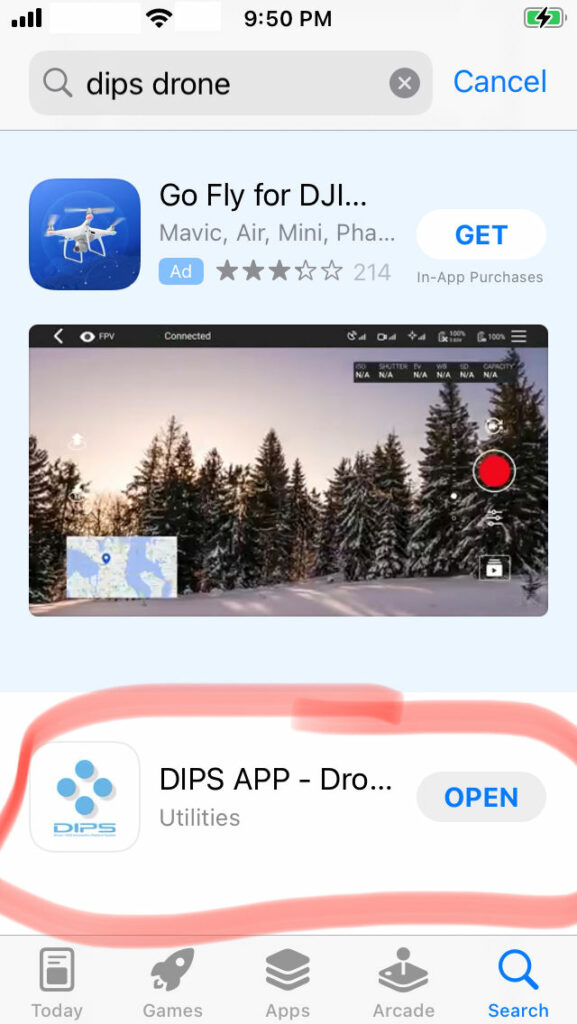
Download the App. To download the app, go to the Apple App Store. Search for the “dips drone” keyword. The app is not the first result, so scroll down a bit until you find the app DIPS APP – Drone Registration.
The app listing is rather unremarkable. There is no image or rating. The icon is not exactly the icon found on the DIPS page either. Therefore, it is easy to scroll right by. Look for the listing as it is shown circled in red in the iPhone screen image to the right.
Login. Once the app is downloaded to your iphone or ipad device, login using the DIPS credentials previously established when the DIPS account was created.
The above assumes an account on the Japan Ministry’s Drone Information Platform System (DIPS) has been setup previously. If not, first go to the Ministry of Land, Infrastructure, Transport and Tourism Drone Information Platform System (DIPS) website and create an account.
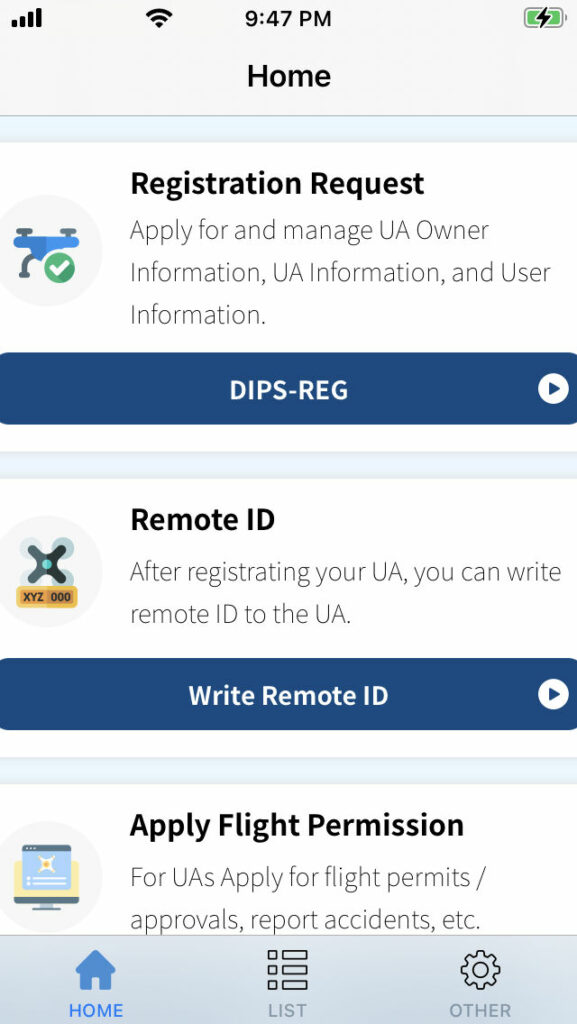
Once logged into the app, there are several options including registering the drone aircraft, remote id writing, and applying for flight permission. These options are seen in the screen image to the left.
To write the aircraft registration information to the remote id device, it must be registered with the Ministry and there must be an assigned registration number that typically begins with JU. Use the DIPS account website or the app to register the drone first. Once the drone is registered, proceed with the following to write the aircraft information to the remote id.
Turn on the TEAD RID Device. Press the power button on the TEAD device. If this is the first time programming it, the green LED should flash a few times, and then turn solid. Solid green LED indicates that the device is ready for programming. If this is not the first time, then with the device turned off, press the power button and hold it for 3 seconds. Release. When the green LED starts flashing, press the power button again. This must be done within 3 seconds of starting the device. The green LED should turn solid. If it does not turn solid, repeat this procedure.
Log into the App. Start the app and login. After logging into the DIPS app, select “Write Remote ID” button to begin the process of sending the registration information to the TEAD TD-RID device.
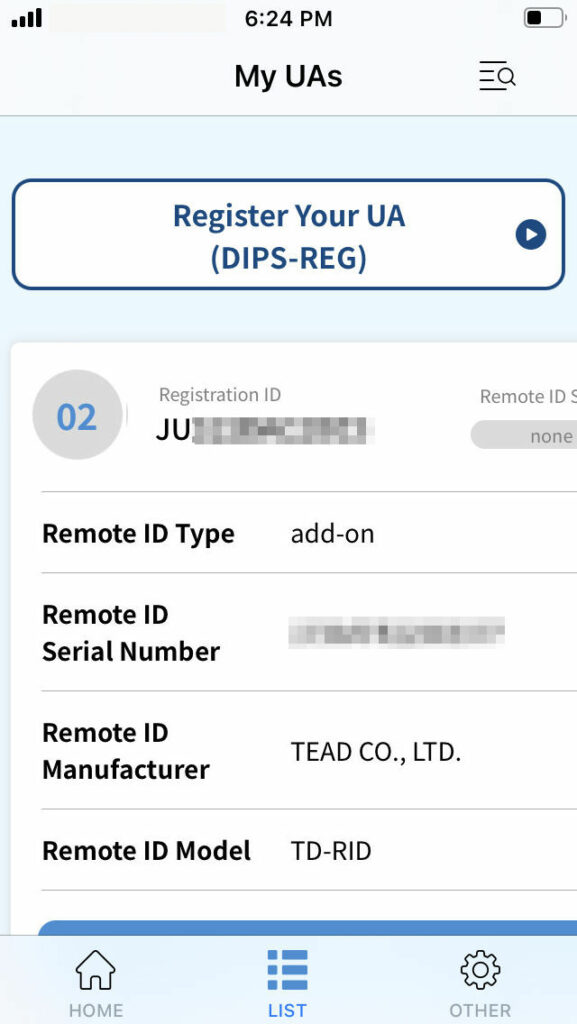
If there are multiple registered aircraft, select the aircraft that is using the TEAD TD-RID device. This will show the registration number and the remote id manufacturer that was provided in the registration process. Note to the right of the registration id, there is a “Remote ID Status” field. When the remote id has not been written, this displays as “none.” This status field is cropped in the image as the app does not fit all screen sizes.
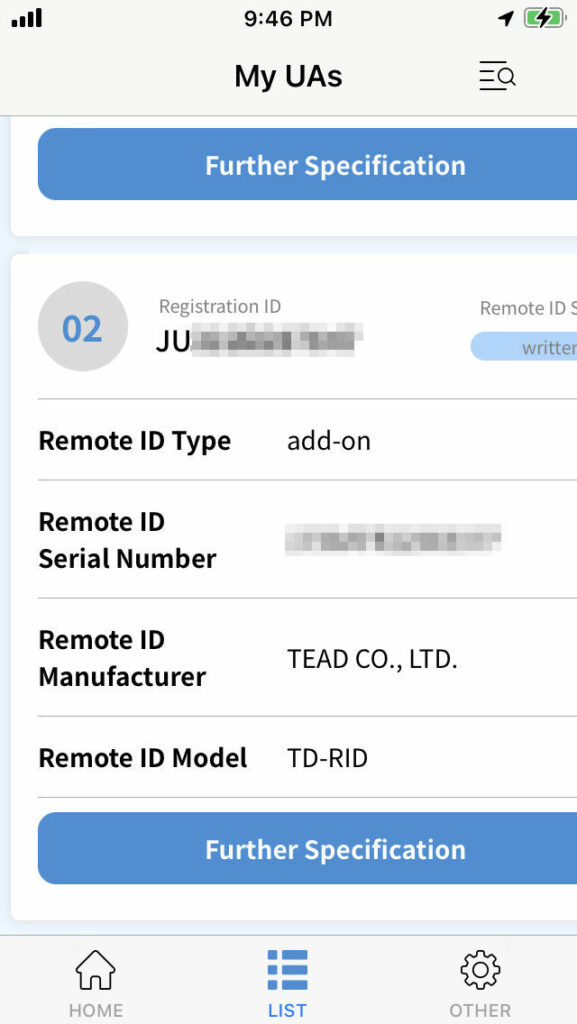
Use the “Register Your UA” button to configure the remote id model and serial number with the aircraft registration information. If this was done already when you registered the aircraft, no additional steps are necessry.
If you are switching the Remote ID to another aircraft, scroll to the previously configured aircraft, and select Further Specification. From there select Delete Remote ID. If this is the first aircraft to use this device, then this is not necessary.
Scroll to the desired aircraft to use the remote id device and select “Further Specification”. Then select “Write Remote ID” button at the top. This will write the aircraft data to the device. If there are no UA’s available when you push this button, then the TEAD device is not in setup mode (LED light not solid green) or the smartphone you are using does not have Bluetooth turned on. Check these things and try again.
Once the aircraft information is written, a status confirmation will display progress as the remote id device is configured and confirm success. Your device must be turned on, and your iPhone Bluetooth must also be turned on. The app communicates directly with the TEAD TD-RID.
When configuration is complete, the “Remote ID Status” field for the aircraft shows “written.” The TEAD TD-RID device is now configured with the registration information for this aircraft and is ready for flight. The aircraft registration information is broadcast by the remote id transmitter as long as it is turned on.
Before flight, be sure to turn on the TEAD TD-RID by pressing the button in the center of the box.